From chest X-ray acquisition to cloud access and reporting
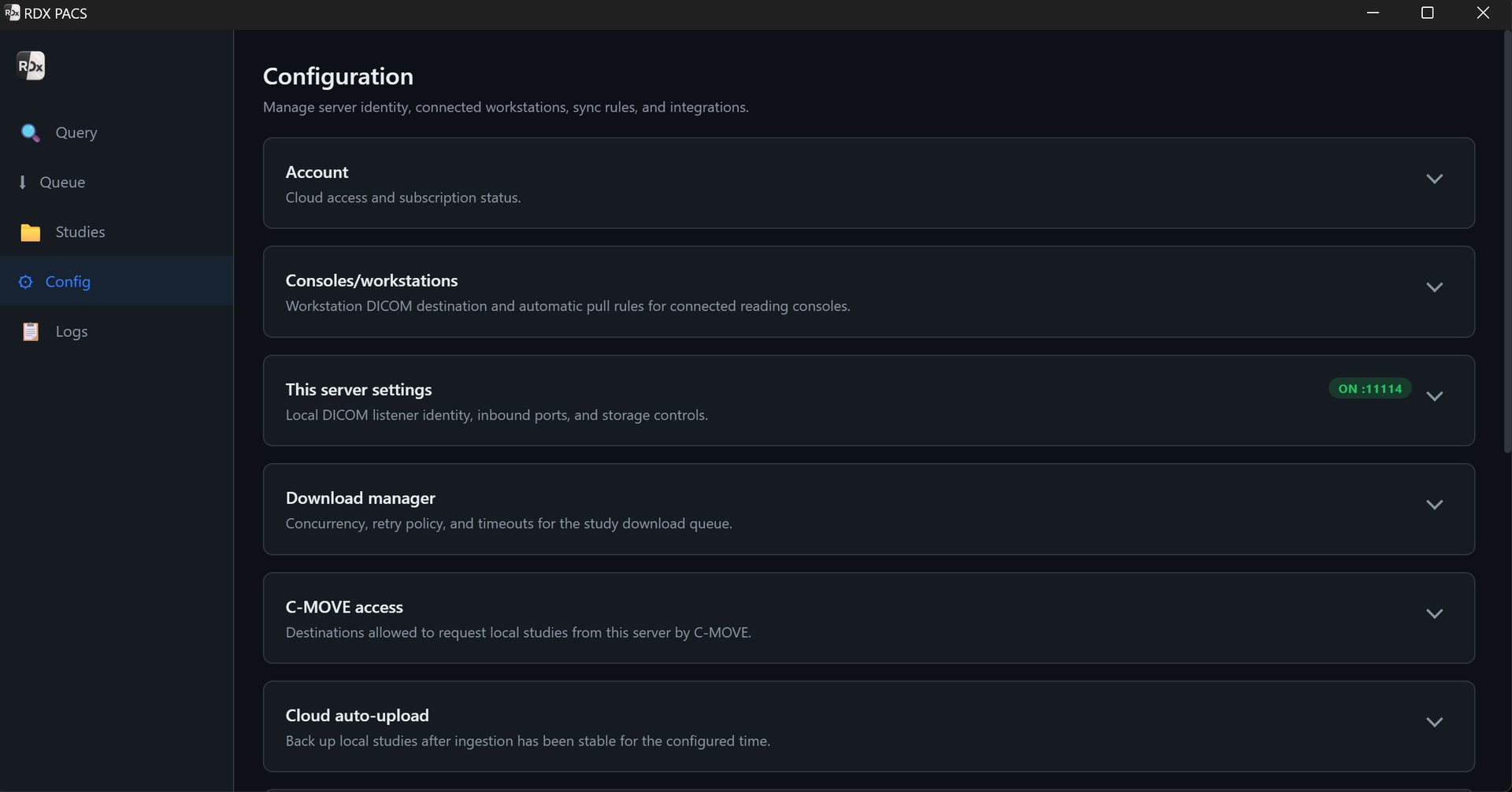
Centres performing medical examinations for people travelling to GCC countries need to retrieve the right examination, make it available to the radiologist and retain it for later review. A cloud PACS brings the image archive into that workflow. RDx PACS combines a local DICOM server, the DN Viewer reading workspace and cloud access for uploaded studies.
For an Indian medical centre screening applicants bound for Saudi Arabia, the UAE, Qatar, Kuwait, Oman or Bahrain, the practical starting point is your own equipment and written requirements. We can discuss the modality connection, daily image volume, reader locations and cloud capacity together, so the proposed setup reflects the work your centre actually performs.
Have a cloud compliance requirement? Start with the written specification.
If your centre has received an inspection checklist or circular requiring cloud storage of X-rays, bring it to the setup discussion. We’ll help compare the imaging requirements with the proposed RDx PACS service and identify what needs confirmation before you subscribe.
The Gulf Health Council’s Wafid programme covers medical examinations for expatriates entering GCC countries, including radiological examinations. Centres should use the official Wafid guidelines and their latest centre-specific instructions as the source for programme requirements.
| Your requirement | RDx PACS workflow | Confirm for your centre |
|---|---|---|
| Digital X-ray archive | Local DICOM receipt with cloud upload for configured studies. | Actual CR/DR compatibility, full image receipt and upload completion. |
| Remote image review | Cloud access for authorised readers; Windows/Mac viewing and reporting. | Who may access each study, reader locations and the required review process. |
| Retention & retrieval | Cloud storage can be sized for the workload and selected retention period. | Required years, total capacity, retrieval, export and deletion terms. |
| Data protection | Encrypted cloud access and role-based access in the PACS workflow. | Hosting location, encryption scope, access permissions and any required audit records. |
| Continuity & recovery | Local and cloud workflows can be planned together. | Backup and restore arrangements, outage procedures, upload recovery and support scope. |
For an inspection, confirm the applicable checklist and agreed service configuration with your centre’s programme contact. Use the official programme system for accreditation and submissions.
Keep local work moving and make uploaded studies available remotely
At your screening centre
Receive DICOM studies over the local network and use DN Viewer on Windows or Mac. Check applicant identifiers, examination details and image completeness before reporting.
For your remote radiologist
Use cloud access to read successfully uploaded studies. Remote availability depends on the internet connection, completed uploads and the selected service configuration.
If the internet connection drops, locally stored studies may remain accessible on a functioning local network. New cloud access depends on connectivity returning and uploads completing. Test that recovery path during onboarding, along with the backup and restore process your centre needs.
A practical setup plan before you go live
- Review the requirement. Share your current cloud, retention, access and inspection requirements, plus the centre’s location and reader locations.
- Check the modality connection. Confirm DICOM output, network settings and any export licence with your CR/DR vendor. Send a representative test study.
- Verify the complete workflow. Match identifiers, check image counts, confirm cloud upload, open images as the intended reader and prepare a report for review.
- Agree storage and service terms. Record the selected capacity, retention policy, hosting location, access, exports, backup arrangements and support responsibilities.
- Validate with your team. Test retrieval and interruption recovery, then check the evidence against your centre’s applicable requirements before go-live.
A useful storage estimate starts with studies per day × average study size × operating days × retention years. Allow additional capacity for growth and agree backup capacity separately. The team can help size the archive using representative X-ray studies rather than assuming every examination is the same size.
Cloud PACS pricing for a screening centre
One local PACS Server at one site starts at ₹999/month, including the Windows and Mac desktop viewer. The starting cloud option adds ₹499/month for 100 GB, giving a combined starting subscription of ₹1,498/month before applicable taxes.
Optional AI reporting and speech-to-text starts at ₹699/month per radiologist, bringing that example to ₹2,197/month for one reader. A radiologist reviews, edits and signs the report. Storage can expand with your caseload; the starting 100 GB option is not an unlimited archive. Retention options start at three years, subject to the selected plan and sufficient capacity. Your required retention period must be agreed separately.
See all plan inclusions and current pricing, or discuss your screening centre’s setup for the capacity, hardware and services you need.
GCC screening centre cloud PACS: common questions
Can RDx PACS support a GCC medical screening centre’s X-ray workflow?
RDx PACS supports local DICOM receipt, cloud access for uploaded studies, Windows/Mac viewing and reporting. Confirm your actual CR/DR equipment, retention needs and written screening requirements during setup.
What should a Wafid or GAMCA medical centre check before choosing PACS?
Share your latest screening checklist so we can review the X-ray archive, remote reporting and retention requirements with your team. Confirm any required vendor approvals and official portal workflow with your programme contact.
Does every GCC screening centre have the same cloud storage requirement?
Use the current instructions for your centre and programme to establish which studies must be stored in the cloud and for how long. We can then size the archive for your screening volume.
Does RDx PACS automatically submit results to Wafid?
Use the official programme system to submit results. If your centre needs a particular export format or direct integration, include that in the setup review so we can confirm what is supported.
Where will our X-rays be hosted, and how long will they be retained?
Hosting location, retention, backups, exports and deletion depend on the agreed service. Confirm them in writing before uploading patient information. The 100 GB starting cloud option must be sized against your volume and retention period.
Can we use our existing CR or DR machine?
A supported DICOM output and a working network connection are required. Test a complete study from your actual acquisition workstation; some vendors require a separate DICOM export licence or configuration.
Bring your screening requirements. Let’s plan the PACS.
Tell us your X-ray volume, equipment, reader locations and required retention. We’ll help confirm the cloud setup and the next steps for your centre.
Discuss my screening centre setup ↑